Castle TV
Castle TV is the big screen version of the free Castle streaming app, built for Android TV, Google TV and Amazon Firestick.
The Castle TV App brings movies, web series, live channels and cricket to your living room with a layout made for remote controls. The menus are larger, the text is easier to read from the sofa, and every action works with the arrow keys. You get the same library as the phone version, with the added comfort of a large display. This guide covers supported TVs, setup on each device, remote controls, login and fixes for common problems.
| App info | Details |
| App type | Movie, web series and live TV streaming for TVs |
| Works on | Android TV, Google TV, Firestick, Android TV boxes |
| Android TV needed | 6.0 or above |
| Controls | TV remote, game controller or air mouse |
| Price | Free, with an optional Premium plan |
| Sign up | Not needed to watch |
| Install method | Downloader app or USB drive |
What Is Castle TV?
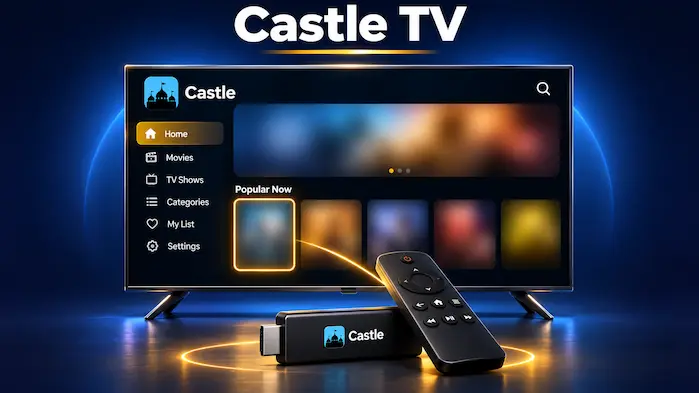
Castle TV is a separate APK made for televisions instead of phones. The phone app expects taps and swipes, which feel awkward with a remote. This version replaces them with large tiles, a side menu and clear focus highlights that show where you are on the screen. It connects to the same content as the Castle App for Android, so new releases and live channels appear on both at the same time. The file is lighter than the phone build, which helps on TVs and boxes with limited storage.
TV Version vs Phone App
Both apps share one library and one account system, but they are built for different screens. Here is how they compare.
| Feature | TV version | Phone app |
| Controls | Remote, arrow keys | Touch screen |
| Layout | Large tiles and side menu | Scrolling rows and bottom tabs |
| Live TV | Full screen channel guide | TV tab |
| Offline downloads | Not available | Available |
| Casting | Not needed | Chromecast support |
| Login | Code or QR pairing from phone | Email or phone number |
Most families install both. The phone app handles downloads for travel, while the TV version handles movie nights at home.
Castle TV Features
The TV build keeps the tools people love on the phone and adds a few made for big screens. These are the features that matter most.
Layout Built for Remotes
Every screen works with the four arrow keys and the OK button. A bright border shows which tile is selected, so you never lose your place. There is no need for a mouse or a touch screen.
Large Movie Library
New releases, recent hits and classic films fill the home screen in clear rows. Bollywood, Hollywood, South Indian and Korean titles each have their own sections. Posters and titles stay sharp even on a 65-inch display.
Live TV Channel Guide
Live channels open in a full screen guide sorted by category and language. You can move between news, sports, music and entertainment with the up and down keys. Switching channels takes a single press.
Live Cricket on the Big Screen
On match days, cricket streams sit at the top of the sports row. Watching on a large TV makes every boundary and wicket easier to follow. Football, kabaddi and tennis appear when those events are live.
Hindi Dubbed Audio
Many Hollywood, South Indian and Korean films carry a Hindi audio track. Open the player menu with the OK button and choose the language. The change applies without restarting the film.
Subtitles
Subtitles are available in several languages for most titles. You can turn them on or off from the player menu at any time. The larger TV text makes them easy to read from across the room.
Video Quality up to 1080p
The player picks a quality based on your connection, and you can change it by hand. Full HD looks best on a stable Wi-Fi network. Lower settings keep playback smooth on slower lines.
Continue Watching
The app remembers where you stopped in every film and episode. Your progress also syncs with the phone app when you sign in. Start a show on your phone and finish it on the TV.
Voice Search Support
On many Android TV and Google TV remotes, you can press the mic button and say a title. Typing with arrow keys is slow, so voice search saves time. Results appear in seconds.
Light on Storage
The TV file is smaller than the phone version. It suits boxes and older TVs with little free space. Updates install fast, even on slow connections.
Supported TVs and Devices
Castle TV runs on most televisions and streaming devices that use Android TV or Google TV. If your TV has the Google Play Store, it can run this app. Sets from Mi, OnePlus, TCL, Sony Bravia, Hisense, Vu, Acer and Thomson all work, as long as they run Android TV 6.0 or newer. Amazon Firestick and Fire TV Cube owners can install it through the Downloader app. Android TV boxes such as Mi Box, Airtel Xstream Box and Tata Play Binge+ also support it.
Some TVs cannot run APK files at all. Samsung sets with Tizen and LG sets with webOS use their own systems, so the app will not install on them. Owners of these TVs can plug in a Firestick or an Android TV box, or cast from the phone app instead.
How to Install Castle TV on Android TV and Google TV
The Downloader app is the easiest way to get the file onto your TV. All you need is your remote and a few minutes.
On Google TV, open Settings, then System, then About, and press the Android TV OS build seven times to unlock Developer options. Then go to Settings, Apps, Security and Restrictions, and turn on Unknown sources for Downloader.
How to Install Castle TV on Firestick
Firestick uses the Amazon Appstore instead of Google Play, but the Downloader method works the same way.
If Developer options is missing, open Settings, then My Fire TV, then About, and press the device name seven times. The menu will appear right away.
How to Install Using a USB Drive
A USB drive works well when the TV has a weak connection or Downloader is not available.
How to Use Castle TV With Your Remote
The app is built around five buttons: up, down, left, right and OK. The left key opens the side menu with Home, Movies, Shows, Live TV, Search and Settings. Press OK on any poster to open its details page, where you can play, add it to your list or pick an episode. During playback, OK shows the player controls for audio, subtitles and quality. The back button closes menus and returns you to the previous screen.
Typing a title with the arrow keys is slow, so use voice search when your remote has a mic button. A Bluetooth keyboard or an air mouse also makes searching faster. Game controllers from Xbox and PlayStation work on most Android TVs as well.
Castle TV Login
You do not need an account to watch on your TV. A login helps when you use Premium or want your watch list and progress to match across devices. The TV app shows a short code and a QR code on the login screen, so you never have to type an email with the remote. Scan the QR code with your phone or enter the code in the phone app to confirm. For every step and error, see our Castle App Login: Sign In, TV Code and Login Fixes guide.
Best Settings for Smooth Streaming
A few small changes make a big difference on a TV. Connect the TV to your router with a LAN cable if it has a port, since a wired connection is far more stable than Wi-Fi. If you use Wi-Fi, choose the 5 GHz band and keep the router close to the TV. Set the video quality to 1080p on fast connections and 720p on average ones. Clear the app cache once a month from Settings, Apps, to keep menus fast. Last, install each update as it arrives, because new builds fix stream errors and improve playback.
Castle TV Not Working? Problems and Fixes
Most TV problems have simple causes. Find the issue that matches yours and follow the fix below it.
App Will Not Install
This happens when Unknown sources is off for Downloader or your file manager. Turn it on in the security settings and try the install again. Also check that the TV runs Android TV 6.0 or newer under Settings, Device Preferences, About.
App Not Showing After Install
Some TVs hide new apps at the end of the apps list. Open the full apps row, scroll to the end and add the app to your favourites. On Firestick, look under Your Apps and Channels and move it to the front.
Video Keeps Buffering
Buffering on a TV almost always points to a weak Wi-Fi signal. Switch to a LAN cable or the 5 GHz band, and move the router closer if you can. Lowering the quality to 720p will also keep playback steady.
Remote Not Working Inside the App
If the remote stops responding, restart the app by closing it from Settings, Apps. Replace the remote batteries if other apps also feel slow. A Bluetooth remote may need to be paired again in the TV settings.
Black Screen or No Sound
Open the player menu and switch the decoder between hardware and software. Check that the TV volume is not muted and that sound output is set to the right speaker or soundbar. Restarting the TV clears most audio and video glitches.
App Crashes on Older TV Boxes
Older boxes with 1 GB of RAM can struggle with heavy menus. Close other apps running in the background and clear the cache. If crashes continue, install the latest TV build, which often includes fixes for low memory devices.
FAQs
Is Castle TV free?
Yes. Every movie, show and channel is free to watch, and an optional Premium plan removes ads and adds more full HD titles.
Can I install it on a Samsung or LG TV?
Not without extra hardware, because those TVs use Tizen and webOS instead of Android. Plug in a Firestick or an Android TV box, or cast from your phone instead.
Does Castle TV work on Firestick?
Yes. Install Downloader, allow apps from unknown sources in Developer options, then enter the TV download link and install.
Do I need to log in on Castle TV?
No. Signing in is optional and helps with Premium or syncing your list across devices.
Can I download movies on Castle TV?
Offline downloads are a phone feature. The TV app is built for streaming over Wi-Fi or a wired connection.
Why does the TV app keep buffering?
The usual cause is a weak Wi-Fi signal. Use a LAN cable or the 5 GHz band, and lower the quality to 720p if needed.
Final Words
Castle TV turns any Android TV, Google TV or Firestick into a full entertainment hub for movies, web series and live cricket. The layout built for remotes, the live channel guide and Hindi audio make it easy for the whole family to use. Install it with Downloader or a USB drive, sign in if you want your list to sync, and keep it updated for the smoothest playback. Pair it with the phone app, and you will have your favourite shows on every screen in the house.