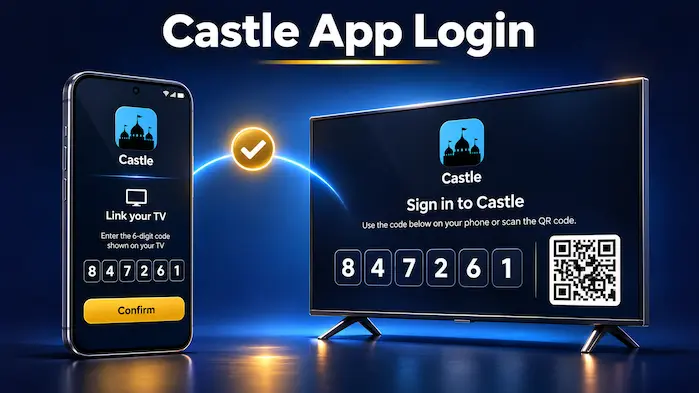
Castle App Login

Castle App Login is an optional step that links your watch list, history and Premium plan to one account. You can watch every free movie, series and live channel without signing in. An account becomes useful when you want the same progress on your phone and TV, or when you move to a new device. The process takes less than a minute and needs just an email address or a phone number. This guide covers every login method, the TV pairing code, account safety and fixes for common sign in errors.
| Login info | Details |
| Account needed to watch | No |
| Sign in methods | Email or phone number with a one-time code |
| TV sign in | Short code or QR code confirmed from your phone |
| Account cost | Free |
| Needed for | Premium, syncing across devices, keeping history |
| Where to find it | Me tab on phone, Settings on TV |
Do You Need to Log In?
Many viewers never use the Castle app login, and the app works fine without it. Your watch list and viewing history stay saved on the phone where you added them. The catch is that this data stays on that one device. If you clear the app data, reinstall the app or switch phones, the list disappears. Signing in moves everything to your account, so it follows you wherever you open the app.
Benefits of Signing In
An account adds a few useful extras on top of the free experience. These are the main reasons people sign in.
Watch List on Every Device
Titles you save after the Castle app login on your phone appear on your TV, and the other way round. Plan a movie night on the bus and start it from the sofa that evening.
Continue Watching Across Screens
Your progress syncs every time you pause. Stop an episode on the TV and pick it up on your phone from the same scene.
Premium Access
A Premium plan is tied to your account, not to one phone. Sign in on any supported device and the ad-free, full HD experience is ready to use.
History That Survives a New Phone
Changing phones no longer means starting from zero. Install the app on the new device, sign in with your Castle account, and your list, history and settings return.
Saved Language and Profile Settings
Your preferred content language, subtitle choice and quality settings stay with your account. Each new device picks them up after you sign in.
How to Create an Account
Creating a Castle account happens inside the app, and there is no separate website form. All you need is an active email address or Indian mobile number.
- Open the app and tap the Me tab at the bottom of the screen.
- Tap Login or Sign in.
- Enter your email address or phone number.
- Type the one-time code sent to your inbox or by SMS.
- Choose a display name if the app asks for one.
Your account is now active. Anything you add to your watch list from this point is saved to it.
How to Log In on an Android Phone
If you already have an account, the Castle app login on a new phone takes a few seconds. Make sure you are using the genuine app from our Castle APK Download: Latest Version for Android and TV page before you enter any details.
How to Log In on Castle TV
Typing an email with a TV remote is slow, so the TV app uses a pairing code instead. You confirm the sign in from your phone, which already has your account.
Codes expire after a short time, so finish the steps without long breaks. For setup on each TV brand, see our Castle TV APK for Android TV, Smart TV and Firestick guide.
How to Log In on a PC
There is no Windows or Mac app, so PC users run the Android version inside an emulator such as BlueStacks or LDPlayer. Once the app opens in the emulator, the login steps are the same as on a phone. Go to the Me tab, enter your email or phone number and type the code you receive. Your watch list and Premium status load in the emulator just as they would on a phone. Keep in mind that the emulator counts as one of your signed in devices.
How to Log Out and Remove Devices
Logging out is a good idea on shared phones, office PCs and friends’ TVs. It also frees a slot if your Castle account has reached its device limit.
- Open the Me tab or the TV Settings menu.
- Scroll down and tap Log out.
- Confirm when the app asks.
To remove an old device you no longer have, sign in on any current device and open the account or device section in the Me tab. Select the old phone or TV and remove it from the list. This also protects your account if a device is lost or stolen.
Is There a Separate Login APK?
No, there is no special Castle login APK. The standard APK already includes sign in, account sync and Premium support. Some sites push a so-called “login APK” or a file that claims to unlock Premium accounts for free. These files are changed by unknown people and are a common way to steal passwords and spread malware. Stick to the original file, and your account and phone stay safe.
Keep Your Account Safe
A Castle account looks harmless, but it still holds your email or phone number. Never share your one-time code with anyone, including people claiming to be support staff. The genuine app never asks for a bank PIN, UPI PIN or card number on the login screen, so close any page that does. Avoid sellers on Telegram or WhatsApp offering shared Premium accounts, since these often get banned and can expose your details. Log out of devices you do not use, and remove any you do not recognise.
Castle App Login Not Working? Problems and Fixes
Most sign in errors have simple causes. Find the one that matches your problem and follow the fix below it.
Code Not Arriving
Check your spam, promotions and updates folders first, since automated emails often land there. For phone numbers, confirm you entered the right digits and that your SIM has network coverage. Wait a full minute before asking for a new code, because several requests in a row can delay delivery.
Code Expired or Invalid
One-time codes work for a few minutes and become void once a new one is sent. Request a fresh code and use the latest one you receive. Type it straight away instead of copying it from an older message.
“Account Not Found”
This message means the email or number you typed has no Castle account linked to it. You may have signed up with a different email or an old number. Try your other addresses, or create a new account if you never signed up before.
Logged Out After an Update
Some updates clear the saved session for security reasons. Sign in again with the same email or phone number, and your list and history will return. If they do not appear, clear the app cache and sign in once more.
“Too Many Devices”
Each Castle account, and Premium ones in particular, allows a set number of devices at the same time. Log out of a phone or TV you no longer use, or remove it from the device list on another device. Then try signing in again on the new one.
TV Code Will Not Link
Check that your phone and TV both have a working internet connection. Make sure the phone is signed in to the account you want to use, since the TV joins whichever account confirms the code. If the code expired, go back on the TV and generate a new one.
Premium Not Showing After Login
Your plan may be on a different account than the one you just used. Log out and sign in with the email or number you used when you bought Premium. If it still does not show, restart the app so it can refresh your account status.
FAQs
Is Castle app login required to watch?
No. Every free title plays without an account. Signing in is optional and helps with sync and Premium.
Is creating an account free?
Yes. Creating an account costs nothing. Payment applies when you choose to buy a Premium plan inside the app.
How do I log in on a TV?
Open the login screen on the TV, then confirm the short code or QR code from the app on your phone.
Can I use one account on several devices?
Yes, within the device limit of your plan. Log out of old devices to free a slot.
Why is my login code not coming?
Check spam folders, confirm the email or number is correct and wait a minute before requesting a new code.
Is there a Castle app login APK?
No separate file exists. The standard APK already includes sign in, so avoid any download that claims otherwise.
Final Words
An account is never required, but it turns the app into one connected experience across your phone, TV and PC. Sign in from the Me tab with your email or phone number, and link your TV with a quick code. Keep your code private, log out of devices you do not use and stay away from fake login files. To learn everything else the app offers, from movie categories to live cricket, visit our Castle App for Android guide.