Castle App Not Working?
Castle App Not Working is one of the most common searches from users who cannot open the app or play a film without warning.
The good news is that almost every problem has a simple cause and a quick fix. Most issues come from an old build, a full cache, a weak connection or a stream that is down for the moment. This guide groups every error by type, from install and launch problems to buffering, downloads, login and TV issues. Find the problem that matches yours and follow the fix below it.
| Problem | Quick fix |
| App will not open | Clear cache, then install the latest build |
| Video keeps buffering | Lower quality to 480p or switch to Wi-Fi |
| One title will not play | Pick another source in the player |
| Black screen with sound | Switch HW and SW decoder |
| “App not installed” | Uninstall the old copy, then reinstall |
| Download stuck | Turn off battery saver, free up space |
| Login code not arriving | Check spam, wait a minute, try again |
Why Is the Castle App Not Working?
Seeing the Castle app not working is frustrating, but the cause is almost never serious. An outdated version tops the list, since old builds lose access to newer streaming servers. A full or corrupted cache comes next, which can make the app freeze on launch. Slow or unstable internet causes most buffering and loading errors. Battery saver modes on Xiaomi, Realme and Vivo phones can also close the app in the background. On top of that, some links go down for a few hours when servers are busy, which affects single titles rather than the whole app.
Quick Fixes to Try First
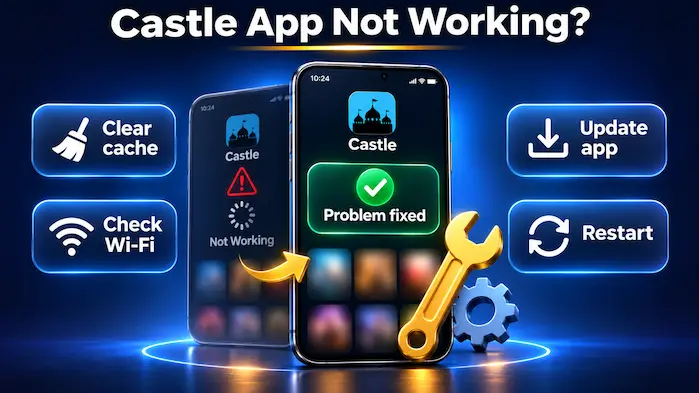
These five steps solve the Castle app not working problem for most users. Try them in order before moving to the detailed fixes below.
If the problem continues, find your exact issue in the sections below.
App Launch and Install Problems
These issues stop the app from opening or installing in the first place.
App Will Not Open
A Castle app not working on launch tends to point to a full cache or an old build. Clear the cache from Settings, Apps, Storage and open the app again. If it still will not start, uninstall it and install the newest version. A quick phone restart after the install clears any leftover memory.
App Keeps Crashing
Frequent crashes leave the Castle app not working for more than a few seconds, and they come from low memory or a damaged install. Close other apps running in the background and free up at least 500 MB of storage. Then clear the app cache and data. If crashes continue, reinstall the latest build using the clean reinstall steps further down this page.
Stuck on the Loading Screen
When the logo spins and the home screen never appears, the app cannot reach its servers. Switch between Wi-Fi and mobile data to test your connection. Turn off any VPN, DNS changer or ad blocker, since these can block the server address. Wait a few minutes and try again, because heavy traffic in the evening can slow the first load.
“App Not Installed” Error
This message keeps the Castle app not working before it even opens. It appears when an older copy is still on your phone or the file did not finish downloading. Uninstall the old version first, then delete the broken file from your Downloads folder. Download the APK again on a stable connection. Make sure “Install unknown apps” is switched on for your browser or file manager.
“There Was a Problem Parsing the Package”
A parsing error means the file is incomplete or your Android version is too old. Delete the file and download it again. Then check that your phone runs Android 6.0 or newer under Settings, About phone.
Streaming and Playback Problems
Most reports of the Castle app not working involve playback. These are the fixes for each one.
Video Keeps Buffering
Buffering almost always points to a slow or unstable connection. Open the player settings and drop the quality to 480p or 360p. Move closer to your router or switch from mobile data to Wi-Fi. On match days, traffic is heavy, so a lower quality keeps live cricket running smooth.
One Movie Will Not Play
When a single title fails while others work, that stream is down for the moment. Tap the source option in the player and pick another server. If no other source is listed, try the same film again after a few hours. Browsing other titles in the Castle Movies: Bollywood, Hollywood, South and Hindi Dubbed library is a good way to pass the time while it comes back.
Black Screen With Sound
A black screen with audio is a player decoder issue rather than the Castle app not working as a whole. Open the player menu and switch between the HW and SW decoder. Turning off screen recorder and blue light filter apps can also fix it, since they sometimes block the video layer. As a last step, open the stream in MX Player or VLC from the player menu.
No Sound
Check that your phone is not on silent and that the media volume is up. Disconnect Bluetooth headphones if the sound is going to them by mistake. If the audio is still missing, switch the audio track in the player menu, since some titles carry more than one.
“Server Error” or “No Content Found”
A server error tends to show up on outdated builds or when servers are busy. Update to the latest version first. If the message stays, wait ten to fifteen minutes and try again. A Castle app not working with this message during evening peak hours often recovers on its own.
Live TV Not Loading
Live channels need a steady connection, more than films do. Lower the quality one step and close other apps using the internet. If one channel fails, try another in the same group, since a single feed may be down for a while.
Download Problems
Offline downloads can fail for a few simple reasons.
Download Stuck or Failing
Battery saver modes pause downloads in the background and leave the Castle app not working as expected. Turn battery saver off while a large file is saving, and set the app’s battery option to “No restrictions” on Xiaomi, Realme and Vivo phones. Check that you have enough free space and storage permission allowed. Keep the screen on for very large files.
Downloaded File Will Not Play
A download that stopped halfway cannot play. Delete the file from the Download tab and save it again on Wi-Fi. If several downloads fail to play, clear the app cache and restart your phone.
Account and Login Problems
Account issues never leave the Castle app not working for free content, but they can block Premium and sync.
Login Code Not Arriving
Check your spam, promotions and updates folders first. Confirm you typed the right email or phone number, and wait a full minute before asking for a new code. Too many requests in a row can delay delivery.
Premium Not Showing
Your plan may be linked to a different account. Log out and sign in with the email or number you used when you bought Premium. Restart the app so it can refresh your account status.
Device Specific Problems
Some issues show up on TVs or computers alone.
Android TV and Firestick
On a TV, a Castle app not working after install is often hidden at the end of the apps list. Open the full apps row and move it to your favourites. If the remote stops responding, close the app from Settings, Apps and reopen it. Use a LAN cable or the 5 GHz Wi-Fi band to stop buffering on large screens.
PC and Emulators
On a computer, slow or broken playback tends to come from the emulator rather than the app. Turn on virtualization in your BIOS and give the emulator at least 4 GB of RAM. For full setup and emulator fixes, see our Castle App for PC: Windows and Mac Guide.
How to Do a Clean Reinstall
A clean reinstall fixes the Castle app not working problem when nothing else helps. It removes every damaged file and gives you a fresh start.
Your list, history and Premium plan return as soon as you sign in.
How to Prevent Future Problems
A few habits keep the Castle app not working issue from coming back. Install every update as soon as the in-app prompt appears, since new builds fix server errors and crashes. Clear the cache once a month to keep the app fast. Keep at least 1 GB of free storage on your phone for smooth playback and downloads. Stick to the genuine file, because edited MOD copies break with each update. Last, sign in so your list survives any reinstall.
FAQs
Why is the Castle app not working today?
The most common causes are an old build, a full cache or busy servers. Update, clear the cache and try again after a few minutes.
Why does Castle keep buffering?
A slow connection is the usual cause. Lower the quality to 480p or switch to Wi-Fi.
Is the Castle app down right now?
Short outages happen during heavy traffic. If other apps work but this one does not load, wait ten to fifteen minutes and try again.
Why does the Castle app say “App not installed”?
An old copy or a broken file is blocking the install. Uninstall the old version and download the file again.
Will reinstalling delete my watch list?
The list stays safe if you sign in before uninstalling. Without an account, it is stored on the phone and will be lost.
Why is the Castle app not working on my TV?
Check that the TV runs Android TV 6.0 or newer, then reinstall the TV build and use a wired or 5 GHz connection.
Final Words
Almost every playback, install or login error has a quick fix. Start with the five basic steps, then match your exact problem to the sections above. Keep the app updated, clear the cache now and then and use a stable connection for the smoothest experience. If you ever find the Castle app not working again, come back to this page and you will be streaming again in minutes.