Castle App for PC Windows and Mac Guide

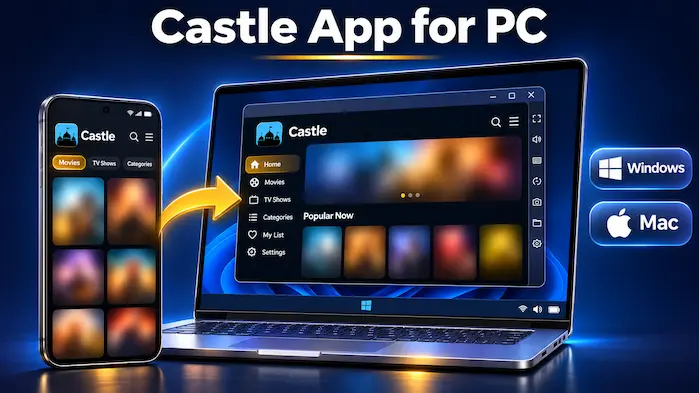
Castle App for PC lets you watch free movies, web series and live TV on a laptop or desktop with a bigger screen and better sound. There is no official Windows or Mac build, so the app runs inside an Android emulator.
An emulator is a free program that creates a virtual Android phone on your computer. Once it is set up, the app looks and works the same as it does on a phone. This guide covers system requirements, the best emulators, step by step setup on Windows and Mac, and fixes for common problems.
| PC setup info | Details |
| Works on | Windows 10, Windows 11 and macOS |
| Install method | Android emulator such as BlueStacks or LDPlayer |
| Minimum RAM | 4 GB, with 8 GB recommended |
| Storage needed | About 5 GB for the emulator and app |
| Price | Free, with an optional Premium plan |
| Controls | Mouse, keyboard and shortcuts |
Is There an Official Castle App for PC?
No official desktop version exists right now. The developers build the app for Android phones and Android TV, which is why the Castle app for PC needs an emulator. The good news is that emulators are free, safe from trusted sources and simple to set up. They run the same APK file you would install on a phone, so you get every feature, from the movie library to live channels. Many users find the experience smoother on a computer, thanks to the larger screen, a steady Wi-Fi or LAN connection and more processing power.
System Requirements
Most laptops and desktops from the last few years can run the Castle app for PC without trouble. Check the table below before you start.
| Requirement | Minimum | Recommended |
| Operating system | Windows 10 or macOS 11 | Windows 11 or latest macOS |
| Processor | Intel or AMD dual core | Intel or AMD quad core, or Apple M series |
| RAM | 4 GB | 8 GB or more |
| Free storage | 5 GB | 10 GB or more |
| Graphics | Integrated graphics | Updated graphics drivers |
| Virtualization | Supported | Turned on in BIOS |
Virtualization, often called VT, makes a big difference to emulator speed. Most modern PCs support it, but some ship with it turned off.
Best Emulators for the App
Several free emulators can run the app on a computer. These are the most reliable choices.
BlueStacks
BlueStacks is the most popular Android emulator and the easiest way for beginners to run the Castle app for PC. It works on Windows and Mac, has a clean interface and receives regular updates. You can install APK files with a single button, which makes setup quick.
LDPlayer
LDPlayer is a lighter emulator built for Windows. It runs well on PCs with 4 GB of RAM and starts up fast. Its toolbar includes an APK install button and simple controls for screen size and performance.
MEmu Play
MEmu Play is another Windows option known for low resource use. It supports both Intel and AMD processors and offers good video playback. It suits older laptops that struggle to run the Castle app for PC on heavier emulators.
Download any emulator from its official website and nowhere else. Avoid third party download sites, since they often bundle unwanted software.
How to Install on Windows With BlueStacks
BlueStacks is the simplest way to set up the Castle app for PC on Windows 10 or 11. The whole process takes about ten minutes.
- Visit the official BlueStacks website and download the installer.
- Run the installer and follow the on-screen steps.
- Open BlueStacks and wait for the virtual Android home screen to load.
- Download the Castle APK file on your computer.
- Drag the APK file into the BlueStacks window, or click the Install APK button in the side toolbar.
- Wait a few seconds for the install to finish.
- Open the app from the BlueStacks home screen and pick your content language.
You can now browse the full library, from new releases to the Castle Movies: Bollywood, Hollywood, South and Hindi Dubbed categories, on your computer screen.
How to Install on Windows With LDPlayer
LDPlayer is a great choice for older or budget PCs. Setting up the Castle app for PC with it follows a similar path.
- Download LDPlayer from its official website.
- Install it and launch the emulator.
- Download the Castle APK file to your PC.
- Click the APK icon in the right toolbar and select the file, or drag it into the window.
- Wait for the install to finish, then open the app from the LDPlayer home screen.
How to Install on Mac
Mac users can run the Castle app for PC setup through BlueStacks for Mac. The steps work on both Intel Macs and Apple M series models.
How to Use the App on a Computer
Using the Castle app for PC feels like using a large phone with a mouse. Click where you would tap and scroll with the mouse wheel. Press F11 in BlueStacks or use the full screen button in LDPlayer to fill your monitor. During playback, the space bar pauses and plays in most emulators, while the arrow keys can skip forward or back. To sync your watch list and Premium plan, sign in with the steps in our Castle App Login: Sign In, TV Code and Login Fixes guide.
Why Watch on a Computer?
The Castle app for PC adds a few clear advantages over a phone. These are the main ones.
Bigger Screen
A laptop or monitor makes every film more immersive. Text and subtitles are easier to read, and full HD looks much sharper.
Better Sound
Laptop speakers, headphones or external speakers give fuller audio than a phone speaker. Action films and live cricket feel far more exciting.
Stable Connection
A wired LAN cable or strong Wi-Fi keeps streams smooth. Buffering is rare compared to mobile data on the go.
Keyboard Shortcuts
Searching with a full keyboard is faster than typing on a touch screen. Shortcuts also make pausing and skipping quick.
Multitasking
You can keep a film running in one window while you work or chat in another. Emulators let you resize the window to fit your setup.
More Storage for Downloads
Offline downloads save to the emulator’s virtual storage on your hard drive. A computer has far more space than most phones, so you can keep more films ready.
Best Settings for Smooth Playback
A few settings make the Castle app for PC run much faster. First, turn on virtualization in your BIOS or UEFI settings if it is off. In the emulator settings, give it at least 2 CPU cores and 4 GB of RAM. Set the display resolution to 1920 by 1080 for the sharpest picture on most monitors. Close heavy programs such as games or video editors while you watch. Keep both the emulator and the app updated, since each new build fixes bugs and improves speed.
Castle App for PC Not Working? Problems and Fixes
Most emulator problems have simple causes. Find the issue that matches yours and follow the fix below it.
Emulator Runs Slow
When the Castle app for PC feels slow, virtualization is often off or the emulator has too little RAM. Turn on VT in your BIOS and raise the emulator’s RAM and CPU settings. Close other programs to free up memory.
Virtualization Is Disabled
Restart your PC and open the BIOS or UEFI menu, often with F2, F10 or Delete during startup. Look for Intel VT-x, AMD-V or SVM Mode and set it to Enabled. Save and restart, and the emulator will run much faster.
APK Will Not Install
The file may be incomplete or the emulator may be outdated. Download the APK again and update the emulator to its latest version. Then drag the new file into the window once more.
App Crashes on Launch
Clear the app cache inside the emulator’s Android settings, then reopen it. If crashes continue, uninstall the app and install the latest Castle APK. Updating your graphics drivers can also help.
Black Screen During Playback
If the Castle app for PC shows a black screen, switch the emulator’s graphics mode between DirectX and OpenGL. Restart the emulator after the change. Updated graphics drivers fix most black screen issues.
No Sound
Check that your PC volume is up and the right output device is selected. Restart the emulator to reset its audio. On Windows, open the sound settings and make sure the emulator is not muted in the volume mixer.
FAQs
Is the Castle app for PC free?
Yes. The emulators and the app are both free, with an optional Premium plan inside the app for no ads and more full HD titles.
Can I install it without an emulator?
No. There is no official Windows or Mac version, so an Android emulator is needed.
Which emulator works best?
BlueStacks is the easiest for most users. LDPlayer and MEmu Play suit older or low RAM computers.
Does the Castle app for PC work on a Mac?
Yes. Install BlueStacks for Mac, then drag the APK file into the emulator window.
Can I download movies on PC?
Yes. Downloads save to the emulator’s virtual storage and play without internet.
Is it safe to use an emulator?
Yes, when you download it from the official website. Avoid third party sites that bundle extra software.
Final Words
Running the app on a computer gives you a bigger screen, better sound and a steadier connection for movies, web series and live cricket. Install BlueStacks, LDPlayer or MEmu Play, drag in the APK and sign in to sync your list. Turn on virtualization and adjust the emulator settings for the smoothest playback. With the Castle app for PC set up, your laptop or desktop becomes a full entertainment screen.